A spreadsheet can manage leads well when owners, recent contact and next actions stay visible to everyone who needs them. Fix inconsistent fields or forgotten reminders before blaming the tool. A CRM becomes worth considering when those repairs still leave broken handoffs, fragmented history or reporting gaps; test one real follow-up and weigh the added cost and administration.
A tidy spreadsheet can hide a missed callback in a notes cell. A polished CRM can be equally unreliable when staff stop updating it. The common failure is not the interface; it is the absence of a visible owner and next action.
Before you pay for new software, look at how your current system behaves when a prospect needs attention, someone else takes over, or a manager asks what happened to an opportunity.
When a spreadsheet is still enough

A spreadsheet works fine if you run a small operation, keep the sales process simple, and update the sheet every time something changes.
Take a solo consultant who gets referrals, follows up personally, and handles each opportunity from first contact to decision. If the sheet shows the current stage, last conversation, next action, and due date, it does the job.
One small-business owner described a different route to that kind of clarity after struggling with scattered reminders:
I had notes in different places, reminders scattered, and things slipping through the cracks. I looked at a few CRMs, but for where I’m at they felt like more overhead than help.
So I simplified everything into a single Google Sheet that shows:
- where each lead is
- who needs a follow-up
- what actually needs attention today
It’s basic, but it’s been working far better than what I had before.
| What the work requires | Spreadsheet tracker | Dedicated CRM |
|---|---|---|
| Contact details | Rows and columns | Contact and company records |
| Next actions | Owner, action, and due-date fields your team keeps current | Assigned tasks and activity features |
| Shared work | File sharing, views, and collaboration controls | Shared records, roles, and permissions |
| Interaction history | Notes or manually organized records | Structured activity history attached to records |
| Pipeline reporting | Views, formulas, and regular upkeep | Built-in reporting |
| Automation | Formulas, add-ons, or custom scripts | Built-in or integrated workflows |
The difference matters when you need links between records, consistent activity logging, enforced ownership, or reports people can pull without rebuilding the data each time.
Google Sheets also has version history, which lets users with the right permissions inspect earlier versions of a file (see Google Docs Editors Help documentation on version history). That covers file changes. A per-contact activity history you still have to organize yourself.
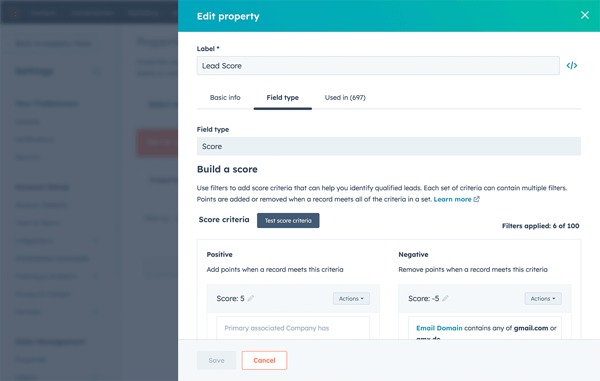
For a stay-or-switch check, open a real lead and find four things without digging through personal inboxes or relying on memory:
- Owner: Who is responsible for moving this opportunity forward?
- Last contact: What was the most recent meaningful conversation?
- Next action: What exactly should happen next?
- Due date: When does that action need attention?
If those answers are accurate and stay current, the spreadsheet can stay.
The warning signs that a CRM would help
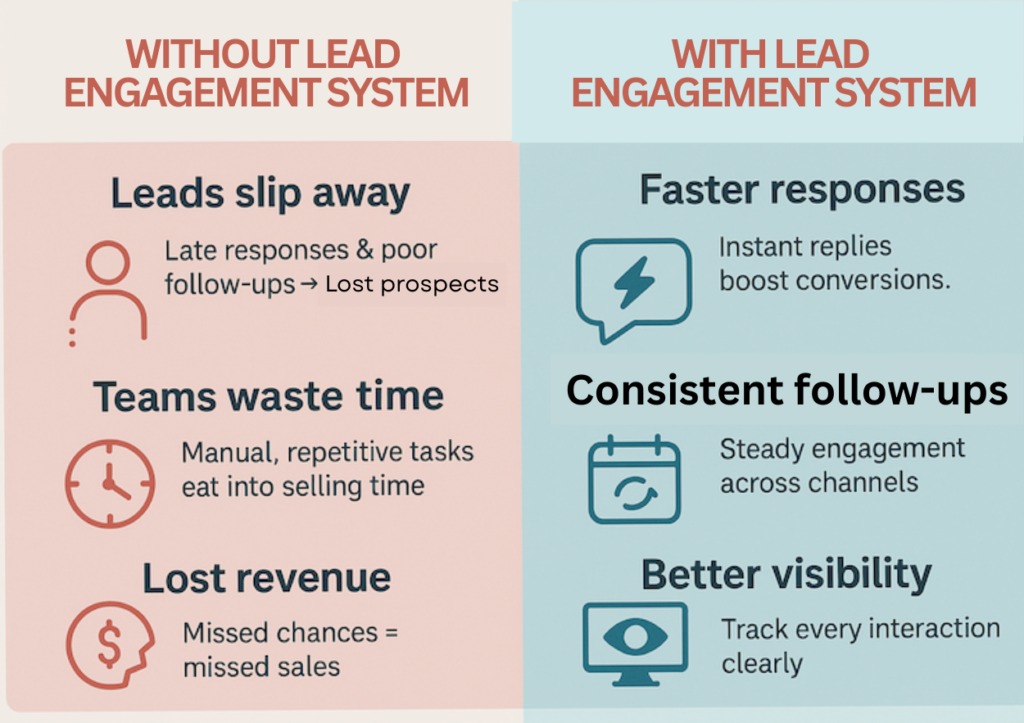
A CRM is worth considering when customer work keeps becoming hard to assign, recover, or monitor.
The clearest symptoms show up in ordinary work. Somebody promises a callback. Another salesperson has to take over.
A consultant managing roughly 150 leads in Google Sheets described what happened when callbacks depended on remembering to check the sheet:
From day one I’ve been doing everything in a Google Sheet. Name, company, last contacted, status, and this one notes column where I basically write a short story every time I talk to someone. It worked. For a while.
Now I’ve missed two follow-ups this month. One of them was a warm lead that probably went cold because I just forgot to check back in. That one stung a bit.
Watch for these signs during a workflow review:
- Unclear ownership: A lead has an owner field, yet two people each assume the other will follow up.
- Missing context: The next salesperson sees a contact name but can’t reconstruct the latest discussion, quote, or objection.
- Competing records: Staff keep different copies, edit the wrong tab, or disagree about which information is right.
- No view of overdue tasks: The team can’t see overdue callbacks or proposals.
- Reports built by hand: An accurate pipeline update means digging through notes, formulas, or individual files every time.
A seasonal event-sales business shows the problem. One salesperson handles an inquiry this year, and a different person answers when the same customer returns next season. The record needs enough history to explain the original request and show who should respond now. Once you decide to switch, see which CRM should you choose.
There is no set contact count or employee count that makes a CRM necessary.
Review recent overdue actions, conflicting assignments, incomplete customer histories, and the time spent reconstructing pipeline status. If those failures persist after you fix the workflow, you have a solid reason to evaluate a CRM.
Fix the spreadsheet before buying another system
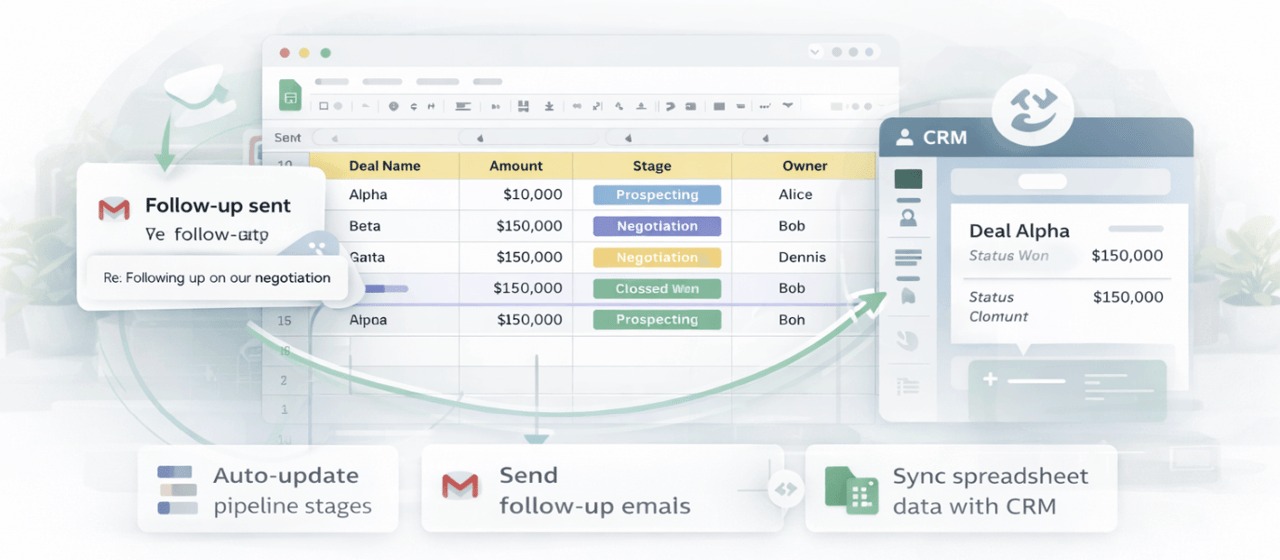
A spreadsheet with inconsistent fields or a neglected overdue list needs repair before you need a new application. Use one shared source of truth with columns for owner, stage, last contact, next action, due date, and notes, then organize due work with Google Sheets filter views. Apps Script installable triggers can run scheduled reminders, within quotas and with some setup, authorization, and maintenance. Give one person responsibility for the tracker and see whether the follow-up problem you identified goes away.
Run the same follow-up test in both systems
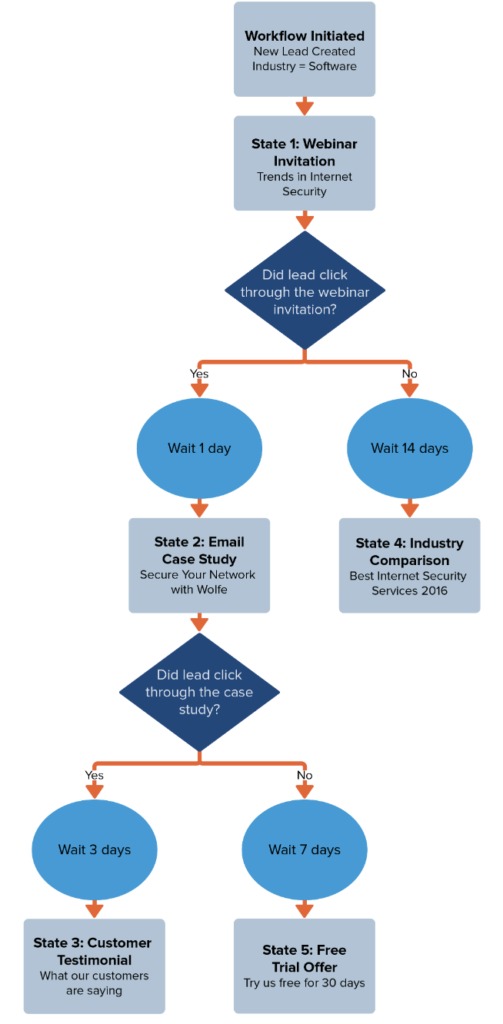
The most useful comparison is a real business task run under the same conditions in a repaired spreadsheet and a CRM trial.
Start with 10 to 20 sanitized or synthetic records. Include an overdue warm prospect, two contacts at the same company, a record without a date, a possible duplicate email address, and an outstanding quote. Use the same participants and the same information in each system.
| Step | Task | Successful result |
|---|---|---|
| 1. Capture | Add a prospect and company | All the details are stored and easy to find |
| 2. Assign | Give the opportunity an owner | Everyone can see who is responsible |
| 3. Record | Enter the latest interaction | A colleague can read it and understand what happened |
| 4. Schedule | Set the next action and due date | The task shows up in the working view |
| 5. Handoff | Transfer responsibility to another user | Context and next steps survive the transfer |
| 6. Review | Find overdue work | The team can see which items need attention |
| 7. Report | Summarize the active pipeline | The same records produce a usable status view |
Score each of the seven tasks in both systems as completed, workaround needed, or failed. For every workaround, note the time or admin it cost: duplicate entry, a search in another application, a question to a colleague, or a formula repair. Then compare the unresolved handoff and data-integrity problems side by side.
Weigh the admin load too. A spreadsheet that does the job with modest upkeep can beat a CRM that needs heavy setup. A CRM that handles handoffs and history cleanly can justify its cost when the repaired sheet still fails.

Shape the exercise around how your business works. A consultant who handles every customer personally should test the individual workflow. A service company whose leads pass between office staff and field employees should test the handoff.
A CRM will not fix an ignored process
Buying a CRM creates a new job: someone has to maintain the records, rules, tasks, and permissions that make it useful. Reminders get ignored, important conversations stay in somebody’s inbox, and automation can pile up work that stops meaning anything.
A RevOps participant at a sales organization of about 300 representatives described the admin cost of automated follow-up tasks:
Tasks bloated over time. We had to manually clean a large number of irrelevant tasks every month. The process we built to address missed follow-ups created its own maintenance problem, and we had to spend time each month cleaning up irrelevant tasks.
Adoption can fail without any automation. Some employees keep updating the spreadsheet after a CRM rollout while others use the CRM, and two versions of the customer relationship start to grow.
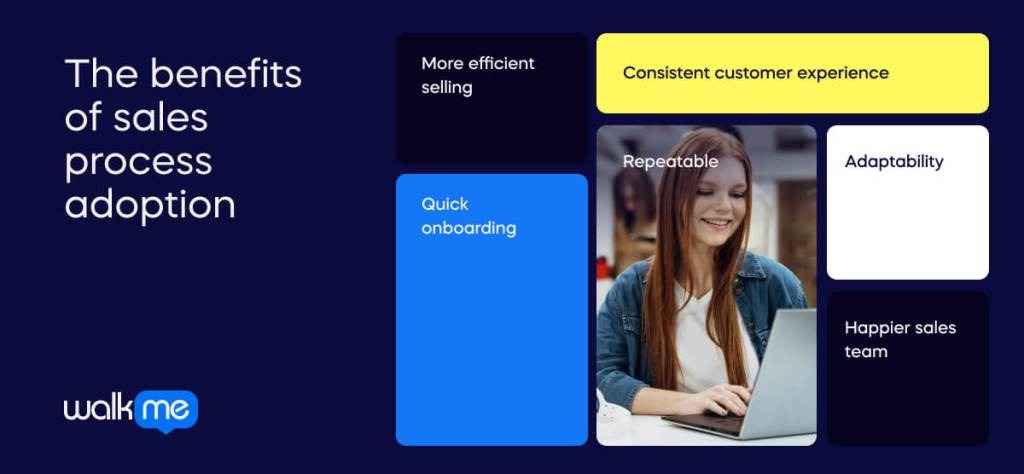
Before you expand a CRM rollout, give one person three checks: Is the team using it? Do the generated tasks match real work? Is anyone still updating the old spreadsheet as an unofficial parallel database? To test this before you commit, read how to test whether your team will use it.
Before migrating, test the data
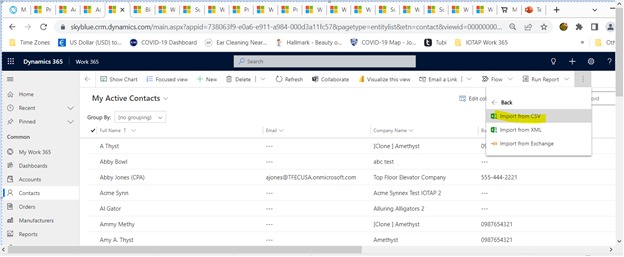
A file that uploads without errors proves little. Check that the right people, relationships, activities, and history ended up in the CRM.
A flat spreadsheet mixes customer names, companies, opportunities, and notes in one table. A CRM stores them as separate record types linked through associations, so the conversion needs deliberate mapping.
Duplicate handling is where assumptions get expensive.
In the HubSpot Community, a user described trouble with customers who had multiple email addresses:
Our clients often have 2-3 emails and this seems to cause the problem, even when both emails are in the email fields.
The contributor suspected that multiple email addresses caused the duplicate contacts. Before you create permanent CRM records, decide how you will identify an existing contact who has several email addresses. Deduplication and mapping behavior depend on the provider and its settings.
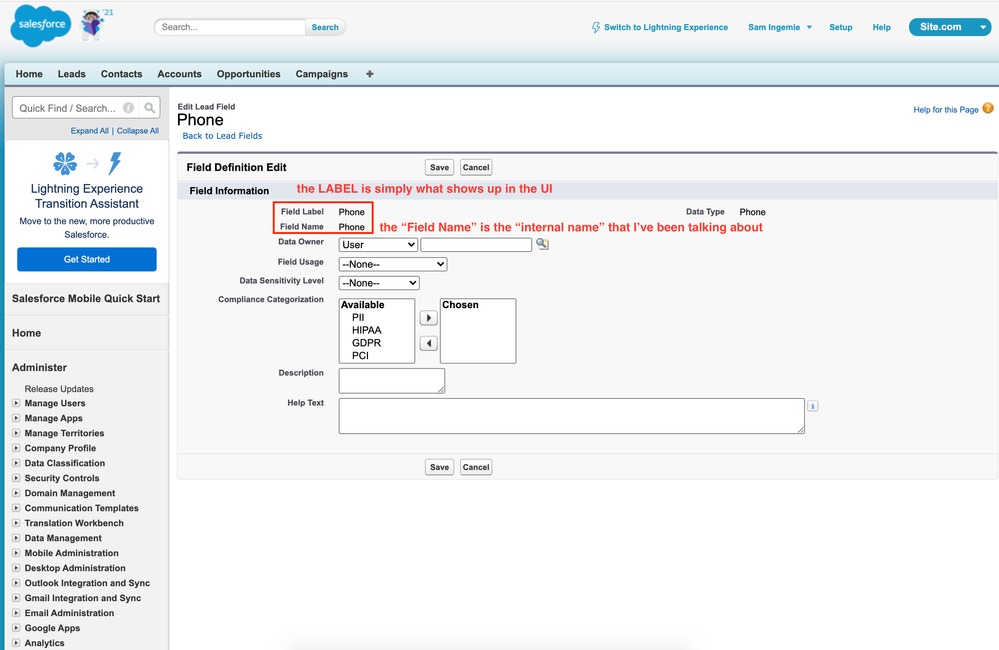
Other problems are harder to spot. A field can import successfully and still be missing from the record’s default view. A source file can have more rows than the number of records reported as created or updated, because those counts measure different operations.
HubSpot documents cases where a row with a secondary email address updates an existing record, which explains some gaps between row counts and update counts. Before you decide data is missing, inspect the destination records, skipped rows, field mappings, and import errors.
Run a small import check before a full cutover:
| Source information | CRM destination to verify | What to inspect |
|---|---|---|
| Contact name and email | Contact record | Right identity, duplicates handled |
| Company name | Associated company | Contact linked to the right company |
| Opportunity or quote | Deal or opportunity record | Correct association and status |
| Follow-up date | Appropriate date property or task | Date read correctly |
| Owner and notes | Assigned owner and activity details | Right owner, notes visible |
| Secondary email | Contact identifier or additional property | Behavior matches that CRM’s rules |
Back up the original source, and keep it until the migrated data matches and you’ve accepted the new system as the working record. Import a sanitized sample that includes awkward records, then inspect contact details, properties, record relationships, and the created, updated, and skipped counts. Resolve discrepancies before you accept the cutover.
HubSpot’s import troubleshooting documentation covers errors involving record identification, property mapping, and date parsing. It describes HubSpot behavior; other CRMs can apply different import rules.
Count the ongoing cost and check the exit
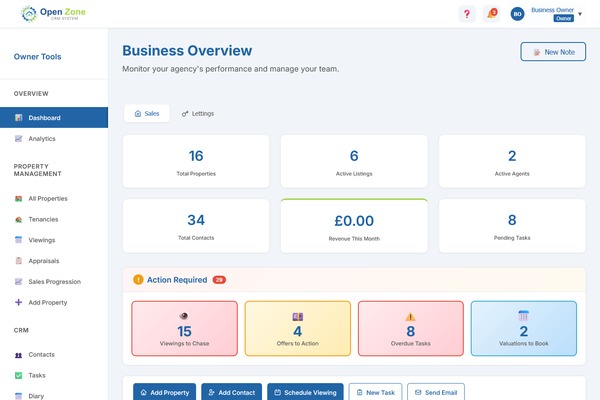
Judge a CRM purchase against what it costs to run and the specific failures it should fix.
A low entry price loses its appeal once extra users, onboarding, training, integrations, and ongoing administration enter the calculation. A spreadsheet has running costs too: manual reconciliation, reporting, and upkeep of custom reminders.
For a small team, ask these questions:
- Seats and features: How many people need paid access, and which plan includes the functions your workflow depends on?
- Initial setup: Will data cleanup, configuration, onboarding, or training cost extra?
- Ongoing administration: Who maintains fields, automations, permissions, and reporting?
- Contract terms: What billing period, renewal commitment, and cancellation conditions apply?
- Export and exit: Can you pull contacts, companies, tasks, notes, activities, and relationships out in a usable format?
Prices, feature gates, cancellation terms, and export access differ by provider, plan, and agreement.
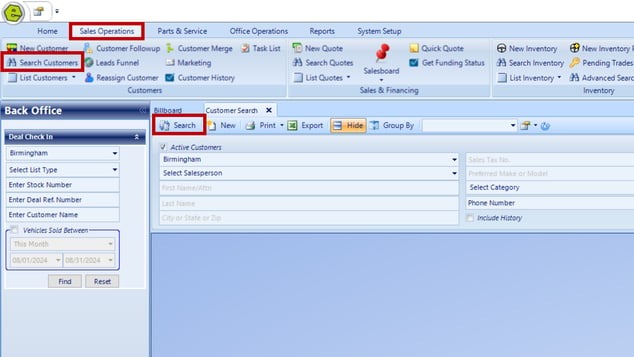
Turn your answers into a 12-month ownership estimate. For the full calculation, see how to calculate 12- and 24-month CRM ownership cost.
The fair comparison is a repaired spreadsheet against a working CRM, with the ongoing cost of each visible. A replacement must earn its place through capability the spreadsheet still lacks.
Speak Your Mind