A CRM migration can look complete while deals lose their account relationships or activity history. Rehearse the move, reconcile important records and let staff carry out their real tasks before scheduling cutover. Keep the old CRM accessible and the recovery path usable until critical exceptions are closed and sign-off is recorded.
A CRM can contain every expected contact and still leave a salesperson staring at an open deal with no customer attached. The import completed. The customer context did not survive.
Records, the links between them, and the workflows that use them all have to work. Prove it before anyone sells from the new system.
Inventory the old CRM before moving anything
Start with the business information you need to keep, including the connections and processes around each record. A contact export doesn’t capture the full customer history.
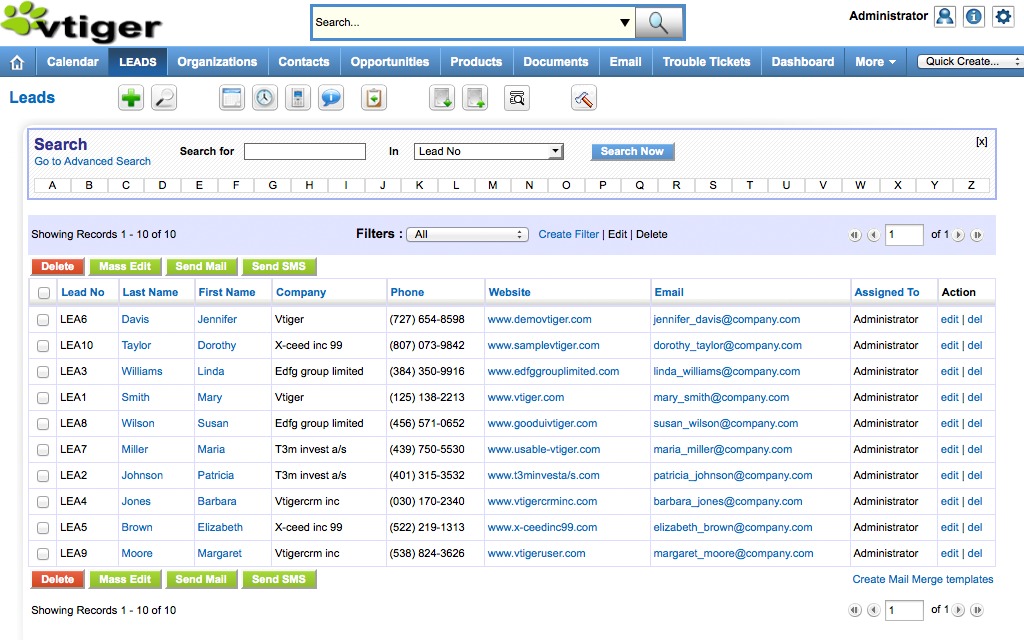
A sales team’s inventory usually covers companies, leads, contacts, deals, notes, activities, users, pipelines, custom objects, and reports. Add the website forms, automations, and connected apps that create or change records. For each item, record the source counts, unique keys, required fields, current owners, associations, and how much the business depends on it.
| Source item | Proposed treatment | What to check | Responsible role |
|---|---|---|---|
| Companies and accounts | Migrate active records | IDs and links to contacts | CRM administrator |
| Contacts and leads | Migrate required records | Values, owners, relationships, preferences | Sales operations |
| Deals and opportunities | Preserve active sales work | Pipeline, stage, owner, linked records | Sales manager |
| Notes, calls, tasks, emails | Migrate or archive by need | Historical retrieval | History owner |
| Files and custom objects | Decide individually | File access and custom relationships | Data owner |
| Forms and integrations | Reconfigure or maintain | Successful downstream event | Integration owner |
For each category, choose migrate, accessible archive, or exclude, and write down the reason and an owner. Archive history only when you can still retain and retrieve what the contracts and retention rules that apply to you require.
Start a data-quality exception log now. Note duplicates, inconsistent stage values, deactivated owners, blank identifiers, and records you plan to exclude. When a cleanup or merge changes the expected count, keep the original count and the approved reason. Without it, a legitimate reduction looks like a failed import.
Add communication preferences and restricted-access attributes to the inventory. They decide who can see a record and whether the business can contact a customer.
Choose a migration method by what it can transfer
Pick the route by what you need to move: objects, associations, history, permissions, and the ability to recover from a failed load. Contacts can fit a CSV importer while notes and deal links need another route.
| Method | Useful when | What to confirm | Main risk |
|---|---|---|---|
| Native CSV import | Records have supported fields | Object and association formats, updates, history | Unlinked or incomplete records |
| CRM migration wizard | The CRM pairing is supported | Modules, activities, attachments, users | Categories outside the wizard’s scope |
| Temporary connector | Two systems must coexist | Sync direction, filters, write ownership | Duplicates or conflicting changes |
| API or custom ETL | Data needs special transformation | Objects, dependencies, retries, error reporting | Development and recovery burden |
| Specialist service | External implementation help is needed | Contracted coverage and error handling | Assumed scope that is not delivered |
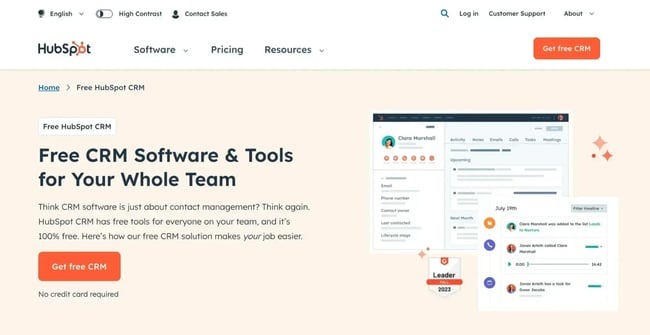
Drop any method that can’t move a critical category or archive it. HubSpot’s object-import documentation shows how each import method handles objects and associations.
HubSpot’s multiple-object import workflow can’t update existing emails, meetings, notes, or tasks. If those activities need correcting after a load, find a supported repair method before you rely on a repeat import.
Build a method-capability sheet with one row per required category and columns for objects, relationships, activities and files, custom fields, permissions, update behavior, recovery, edition or access condition, and evidence. For your actual CRM pairing, mark each cell supported, unsupported, or unconfirmed. A tool’s success message says nothing about categories it was never configured to transfer.
Decide which history must move and which can stay in an archive
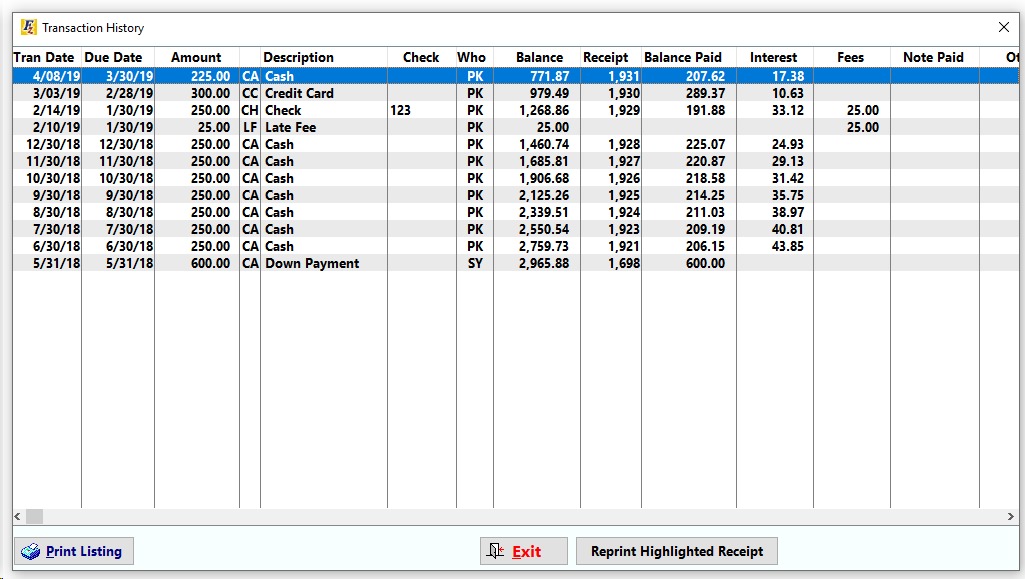
Notes, calls, tasks, meetings, email conversations, and attachments can explain a customer’s last commitment long after a deal is created. Decide where each category lives and which staff can reach it.
One person describing a HubSpot implementation came close to commissioning custom email-history migration work:
Every single HubSpot implementation. Without fail. Someone asks: "But what about all our existing email history?"
And for years the honest answer was… forward emails to a HubSpot-provided address and pray. Or build something custom. Or just tell them "going forward" enough times until they accept it.
We were literally two days away from scripting a full migration for a client. Pulling contacts, threads, years of context programmatically. Already scoped. Almost started.
The same poster then found a built-in option. Whether you get historical email depends on your platform, connection, method, and plan edition.
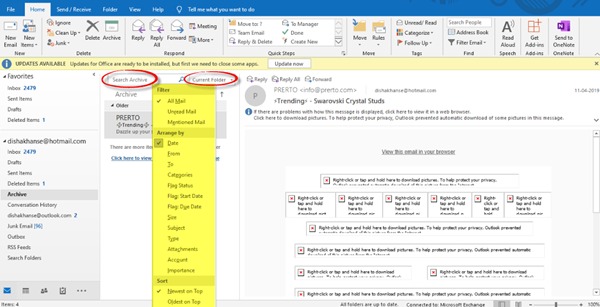
Sort each history category into the same buckets as the inventory: destination CRM, searchable archive, or approved exclusion. Then retrieve a sample note or email the way an ordinary employee will after cutover. If it sits in the new CRM, it should show on the right contact or deal. If it’s archived, the right employee must be able to find and open it without a canceled account.
Map fields, owners, and record IDs before the first import
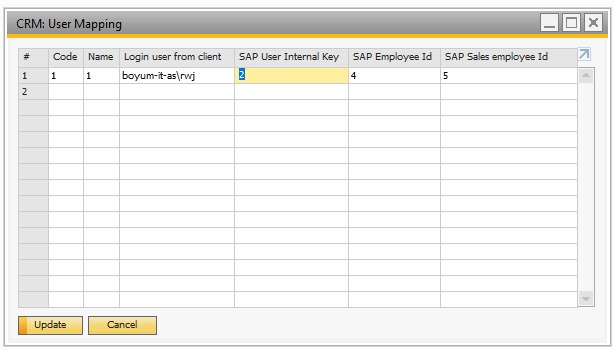
Keep a crosswalk between old and new identifiers. Every new record ID must trace back to the original customer, and links between records must resolve to the new objects.
Take a fictional company, one of its contacts, and an open deal:
| Source object | Source ID | Destination object | Destination ID | Required reference |
|---|---|---|---|---|
| Company | C-17 | Company | 9001 | Parent of contact and deal |
| Contact | K-42 | Contact | 8120 | Company 9001 and Deal 705 |
| Deal | D-8 | Deal | 705 | Company 9001 and Contact 8120 |
In the old CRM, K-42 belongs to C-17, and D-8 links to both C-17 and K-42. In the new one, those links must resolve as 8120 to 9001, 705 to 9001, and 705 to 8120.

Field mapping needs the same precision. In this example, the deal stage Proposal sent maps to the approved value Proposal, once the business confirms the meanings match. A deal owned by a deactivated user goes to an approved salesperson in the new CRM. The crosswalk records source and target fields, field types, permitted values, the conversion rule, an owner, and exception evidence.
Keep the old identifier as an external reference where the method allows it. Record how your importer matches existing rows and handles nulls, date formats, and custom fields. Salesforce’s data-loader guidance covers object dependencies and legacy identifiers. Your own importer sets the actual object order and identifier handling.
For duplicate candidates, set the matching key and decide which record survives. Preserve the lineage of merged records, their histories, and the original counts. Two records with the same email address can carry different linked activities, so every merge needs an approved decision.
Rehearse with records that expose failures
A useful rehearsal includes a company with two contacts and a linked deal, a deactivated owner, an unusual stage value, a duplicate candidate, a historical note, a required attachment, and an opt-out state. Use the C-17, K-42, and D-8 relationships, and keep test data and outbound automations contained so no real customer gets a message. Save the source fixture, import log, destination IDs, and exceptions, then open the resulting records and relationships. Even a clean rehearsal won’t catch every edge case in the full dataset.
Reconcile records, relationships, and required history
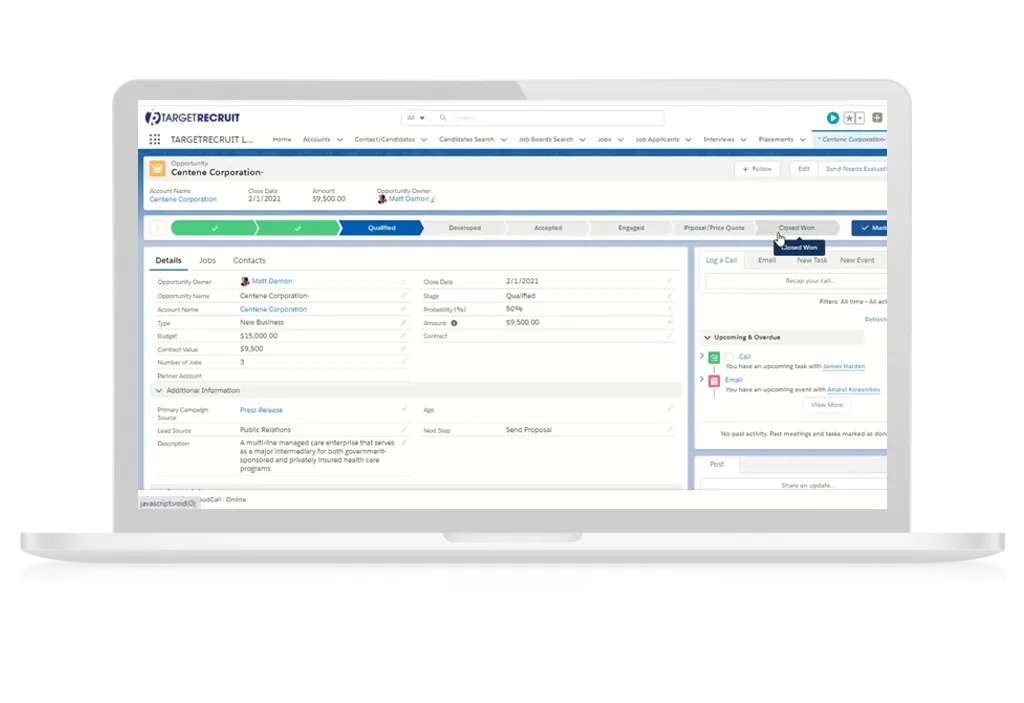
Reconciliation is the release test. Compare source counts with expected new counts after approved merges, archives, and exclusions, then check that key fields and customer relationships survived. For the detailed procedure, see reconciling record counts, relationships and exceptions.
HubSpot’s import-error reference lists cases where records load without their expected associations because identifiers are missing or invalid. An owner can also go missing when the new CRM can’t resolve the specified owner. So check the records themselves, not only the error report.
The table shows the same example with one relationship missing.
| Check | Expected vs. observed | Status | Evidence / owner | Decision |
|---|---|---|---|---|
| Contact count and fields | Expected records and critical fields accounted for | PASS | Count report / CRM admin | Accept |
| Company to contact | 8120 linked to 9001; link present | PASS | Record view / CRM admin | Accept |
| Deal to contact | 705 linked to 8120; link missing | FAIL | Association view / migration owner | Correct identifier mapping; retest |
| Deal owner and stage | Approved owner and value preserved | PASS | Deal audit / sales ops | Accept |
| Required history | Target or archive retrieval works | PASS | Retrieval record / history owner | Accept |
| Opt-out and access attributes | Approved source states match destination | PENDING | Field check / data owner | Hold approval |
| Inbound form | Test submission creates intended object | PENDING | Workflow log / integration owner | Hold approval |
| Recovery | Selected recovery procedure demonstrated | PENDING | Recovery record / migration lead | Hold approval |
The missing 705-to-8120 link fails a critical check even though the record counts are right.
For a reusable acceptance sheet, keep these fields for each test: check_id | source_expected | target_observed | status | evidence_ref | exception_owner | corrective_action | retest_result | approver. Use PASS, FAIL, NOT APPLICABLE, or APPROVED EXCEPTION for finished checks, and PENDING only while a result is awaited. Record evidence paths and an approver’s name.
Critical fields include owner assignments, pipeline stages, meaningful custom properties, activity links, and the communication-preference and access states your organization requires.
Test the forms, workflows, and integrations that feed the CRM
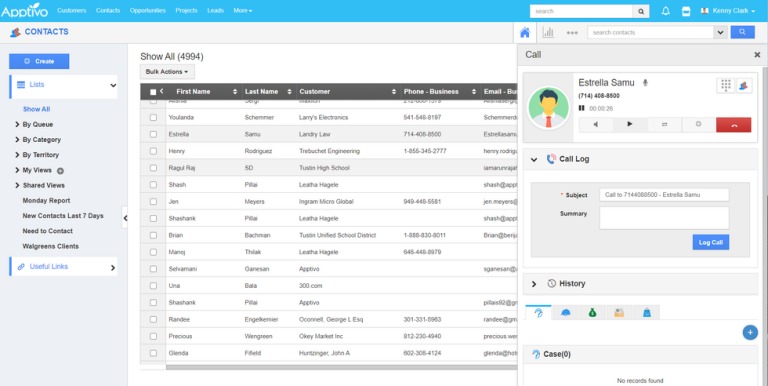
A static data import can pass while new business stops arriving. Test a lead from its origin to the employee who has to act on it.
During a HubSpot-to-Salesforce transition, one poster described a form-to-lead path that had stopped producing Salesforce leads:
[…] Whenever a contact is created in HS from a form (now even manual creation), it creates a contact in HS and will be a lead in SF (check the attached image for the HSxSF Integration). It was working properly last Monday, but suddenly it is no longer creating leads in SF.
The poster never found the cause. Your test should show whether a new contact or lead is created, assigned, routed, and visible in each required system.
- Origin: Submit a test form and identify the source record.
- Eligibility and direction: Check inclusion rules, sync direction, and expected create/update behavior.
- Destination: Check the object, owner, stage, and any required notification.
- Coexistence: Change a test record while both CRMs run and see whether the owning system and downstream copies behave as agreed.
- Safety and access: Confirm permitted users can work with the outcome, and restore paused automation rules without contacting customers unintentionally.
When a result is wrong, inspect the sync status, configured mapping, inclusion criteria, and any error panel. Save what you observe under the integration test’s owner. Don’t label an unresolved connection problem a confirmed vendor defect.
Plan cutover, recovery, and the go/no-go decision
Cutover needs one authority for changes, a controlled final transfer, and an approver with the power to stop activation. Name the system of record and the people responsible for migration, recovery, and communications before you change production access. For a worked example of the sign-off record, see how to use a migration acceptance record.
Running two CRMs during a transition can blur that authority. One r/salesforce user describes marketing in HubSpot and sales in Salesforce:
[…] Now that we’re split, with our Marketing org living in HubSpot and sales living in SFDC, we rely on the native connector to maintain contact/account mappings.
It’s a beast to manage, and never works as designed despite Hubspot support AND multiple consultants confirming we have it configured based on best practices.
While both CRMs run, write down which one owns each change.
- Freeze or control source changes: Set a read-only window, or use another change-capture method the operation supports.
- Identify the final delta: List new and changed old-CRM records since the rehearsal or last accepted load, with the snapshot reference.
- Transfer using the approved method: Apply the delta under the documented matching, merge, and overwrite policy.
- Reconcile the delta: Compare its records and relationships against the new CRM and resolve critical exceptions.
- Run the critical workflow gates: Confirm inbound and outbound operations are safe to activate.
- Authorize or recover: Get named sign-off, or run the tested recovery plan for your method and schedule the next rehearsal.
Recovery detail: Zoho CRM’s migration overview separates new records inserted through an upsert, which the described process can roll back, from existing records the upsert overwrote, whose previous values that rollback can’t restore. Plan recovery for the actual operation before you run it.
Keep a compact decision record: window | authoritative_source | snapshot_id | delta_policy | controlled_automations | load_result | critical_exceptions | recovery_proof | approver | GO/NO-GO | next_action.
Record GO when critical checks are complete and recovery is demonstrated, NO-GO for unresolved critical exceptions, and RETEST for results after a fix. The decision-maker can accept a noncritical formatting difference once its business effect is documented.
Stabilize the new CRM before retiring the old one
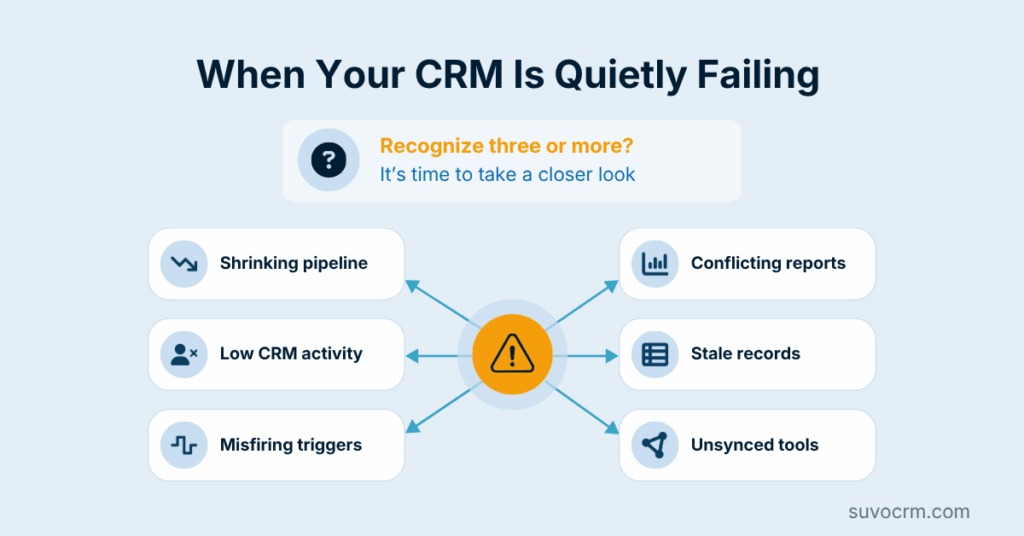
Watch the first days of production use closely. Monitor inbound leads, unexpected duplicates, owner assignments, reporting mismatches, and inaccessible customer histories. Keep the crosswalk, migration logs, exception records, and an escalation owner for incidents.
Have sales and support staff do their ordinary work in the new CRM: open an account, see its contacts and deals, retrieve the last commitment, and find the next task. Set permissions and training around those workflows. For what to prioritize in a small team, see what a small sales team should prioritize.
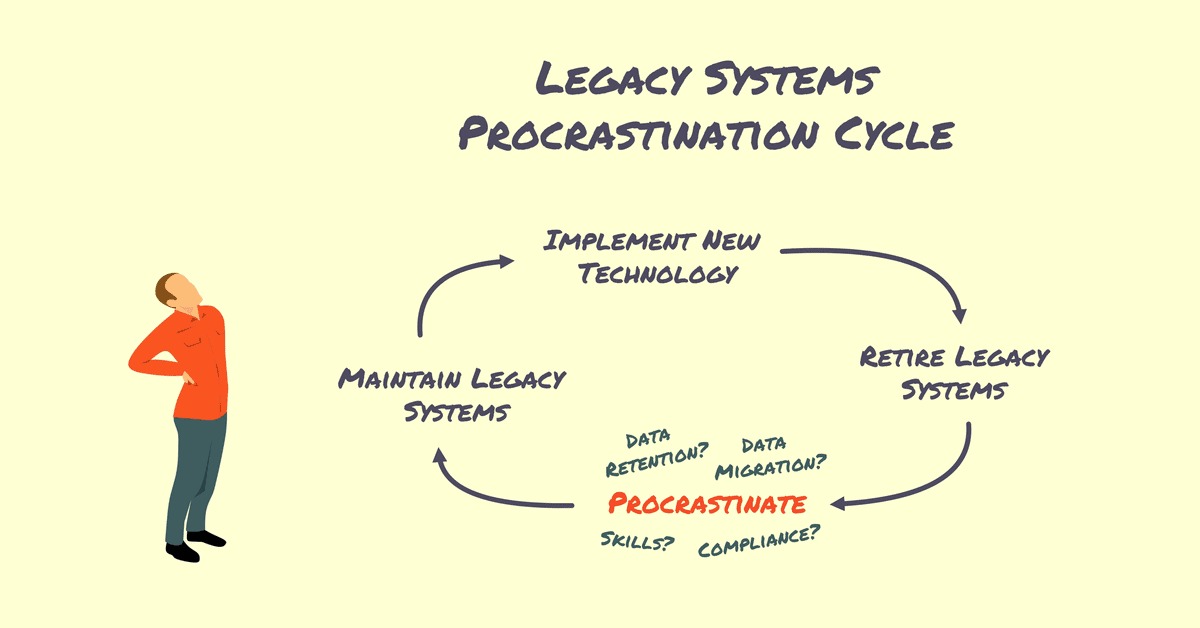
Retire the former CRM only when the team can retrieve the historical records it still needs, with exception logs and access arrangements retained for later questions.
Speak Your Mind