The best field-service product depends on the crew and the work it performs. A solo operator and a dispatch office do not need the same schedules, permissions or billing steps. Make each candidate complete a quote-to-invoice job, including offline work and accounting, before comparing 12-month costs against the tools you already own.
Which kind of field service business are you running?
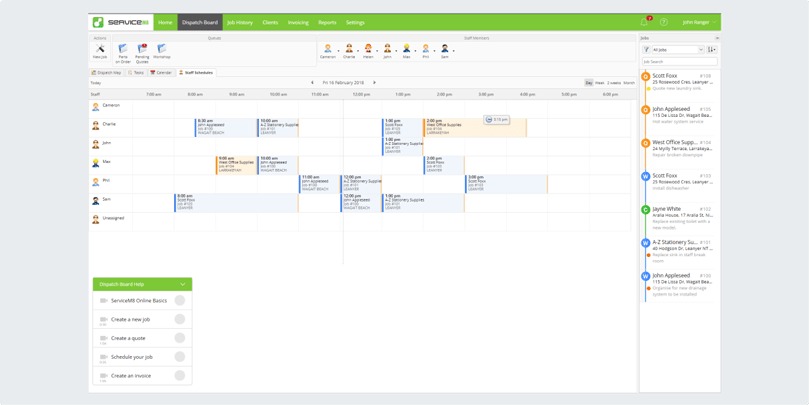
A handyman booking a few repairs, an HVAC dispatcher coordinating five technicians and a contractor following a multiweek installation will use scheduling and job history differently. The first job each should demonstrate is the one most likely to break in their own operation.
All three may be shopping for field service management software, or FSM. The job that has to move through the system decides which features matter.
| Business type | Job the software must handle | Dealbreaker |
|---|---|---|
| Solo handyman or pressure washer | Estimate, appointment, completed work, invoice | Slow quoting or extra admin steps |
| HVAC, plumbing, or electrical crew | Incoming request, dispatch, technician update, invoice | Schedule changes that don’t reach the right worker |
| Recurring maintenance or cleaning company | Repeat appointments with one continuous customer history | Weak recurrence handling or disconnected visit records |
| Installation or project contractor | Multiple visits, deposits, approved changes, progress billing | No milestone or change-order workflow |
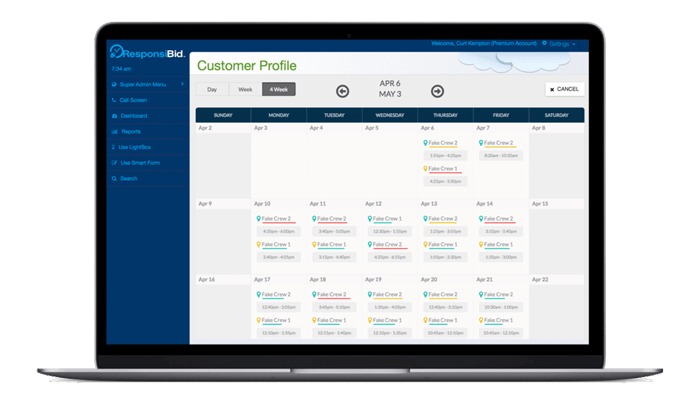
A calendar appointment is a simple record. Dispatch adds an assigned technician and a shared view of the day. Recurring service links separate visits. An installation project may depend on approved changes and partial payments before the last crew leaves.
A business that bills at milestones may need contractor or project-management software with field features. A dispatch-focused FSM suite can work, but check that it handles progress invoicing.
Pick three jobs that represent your operation: a normal paid call, a callback or recurring visit, and a phased project if you do them. Trace each one from customer request through approval, field work and billing. Any step the software must handle without manual rebuilding becomes a filter.
Seven field service platforms worth putting on a small-business shortlist
The seven platforms below suit different operating and billing situations.
| Platform | Start here when | Question that could rule it out |
|---|---|---|
| Jobber | Your work centers on estimates, scheduled service calls, job records and invoices, from a solo operation to a growing crew | Does your plan give each office and field role the access and integrations it needs? |
| Housecall Pro | You run a home-service business with appointments, dispatch and mobile field work | Can your technicians do their tasks within the app’s connectivity limits? |
| ServiceTitan | You want a broader operational system and can evaluate a per-technician proposal | Does the full quote and package scope justify the commitment? |
| Service Fusion | Several employees need access and an unlimited-user annual plan is worth comparing | Are the functions you need included, and can you accept the annual cash commitment? |
| FieldPulse | Office staff and field employees need different permission levels | What does the quoted mix of full-access and limited field seats cost? |
| ServiceM8 | Your monthly job volume is predictable enough to compare quota-based plans | Do the job allowance, devices and features fit your work? |
| Workiz | Phone and communications workflows matter alongside field service operations | How are communications and other features packaged and billed? |
For a one-person repair business, compare Jobber and ServiceM8 first: Jobber prices by crew size, ServiceM8 by monthly job allowance. For a home-service crew with a dispatcher, start with Jobber and Housecall Pro. FieldPulse becomes relevant when limited-access field seats are a major requirement. Choosing between Jobber and Housecall Pro? Read the Jobber–Housecall Pro comparison.
If many employees need accounts, compare Service Fusion’s unlimited-user billing with FieldPulse’s role-based quotes. Add ServiceTitan if you need broader operational coverage and can get a complete per-technician proposal, and Workiz if phone workflows drive your decision.
Keep the shortlist to two or three platforms, then check whether their full costs are comparable. Not sure you need full FSM yet? See when full FSM is worth it.
Compare what you will pay across seats, jobs, and contract terms
The first price on a vendor’s site rarely tells you the full cost. One vendor counts technicians, another distinguishes employee roles, and another caps the jobs you can process each month.
| Vendor | Published billing model | Price or limit |
|---|---|---|
| Jobber | Crew-size configurations | Solo, 2 to 5, 6 to 10, 11 to 15, and 16+ team members; price depends on configuration and billing terms |
| ServiceTitan | Per-technician quote | Starter, Essentials and The Works packages; individualized pricing required |
| Service Fusion | Annual-billing tiers with unlimited users | Starter $208/month, Plus $325/month, Pro $533/month under the published annual terms |
| FieldPulse | Full-access and limited field seats | Customized quote required for your mix of users |
| ServiceM8 | Monthly job allowances |
Paid plans list unlimited users. |
| Workiz | Edition-based plans with communications options | Charges and add-ons need confirmation |
These are published US prices and plan descriptions. Checkout, promotion, edition and renewal terms can differ, and an annual plan’s monthly price can mean paying the full year at signup. For price ranges, see what field service software costs in 2026.
The published Service Fusion pricing shows how this works: Starter is $208 per month under annual billing, with unlimited users.
With ten employees, compare per-job and unlimited-seat pricing. A busy solo operator can hit the opposite problem: a cheap plan stops working once the job allowance runs out.
Build a 12-month ownership cost sheet for each finalist, using this calculation:
12-month ownership cost = subscription commitments + additional seats or technicians + usage charges + required add-ons + onboarding and migration + communications and payment fees.
Include the costs that apply to you:
- People and access: owner, administrator, dispatcher, technicians and any limited-access workers.
- Job volume: expected monthly work, allowance limits and overage terms.
- Feature edition: the cheapest plan that includes every workflow you need.
- Payment timing: monthly or annual billing, contract minimum, introductory discount and renewal amount.
- Additional charges: setup help, data migration, SMS, phone services, AI options, payment processing and integrations.
Treat an unquoted amount as quote required / total unknown. A missing ServiceTitan or FieldPulse figure means you need the actual proposal, not a guessed public price.
Count an annual plan once: its monthly equivalent and its yearly payment are the same subscription.
Run one real job through every finalist before you subscribe
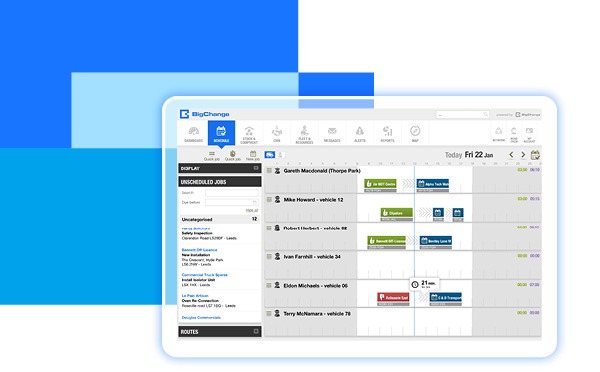
A demo shows an estimate flowing neatly into a scheduled job. The harder questions come later: what happens when the appointment moves, when the technician needs to update it, or when the customer shouldn’t be billed?
Run the same fictional customer, job details, staff roles and success criteria through each finalist’s trial. A standard service call is the baseline.
Start with a paid repair
- Create the request. Enter a customer, service address, job description and itemized estimate.
- Record approval. Use the customer-approval process and keep the approved amount.
- Assign the visit. Schedule the appointment and give it to a technician.
- Change the appointment. Move it to another time or worker, then check the dispatcher and field views.
- Complete the job. Add notes, photographs and completion details using the technician’s permissions.
- Bill the customer. Produce the invoice and check the payment status and job history.
Log every manual re-entry, missing field and confusing handoff. A scheduling screen that looks good in a demo can create extra work when the office changes an appointment after the technician has started the day.
Add the $0 callback
Say an HVAC technician returns to fix an issue covered by the original job. The office needs the return visit in the service history, and the customer owes nothing for it.
Create a no-charge return visit with the workflow the platform offers. Check how it handles the $0 invoice or equivalent record, what balance remains and whether payment reminders fire. Users raise this problem often in discussions, so look for the setting that suppresses those reminders.
Test the job your company performs repeatedly
A cleaning company can create a recurring monthly service and check that the second visit keeps the right customer history.
An installation contractor can test a deposit, milestone and approved change order. That sequence differs from a single paid repair.
For each critical operation, record PASS, FAIL, NOT TESTED or NOT INCLUDED IN PLAN, along with the subscription edition, device, user role and test conditions. Drop any platform that fails an essential task. A task you haven’t tested is still an open question.
What works when a technician has no cell service?

Offline support is several separate capabilities. Reading a downloaded appointment, saving a note you can’t send yet and taking a payment are different operations. A technician in a basement or at a rural property may need all three.
| Operation | What to check | What it means |
|---|---|---|
| View a downloaded job | Cached instructions open without a connection | Technician can read jobs already downloaded |
| Receive a new assignment | A dispatch change reaches the device during the outage | Office changes reach the field |
| Edit notes, forms or time | Changes are saved locally | Work can be recorded before reconnecting |
| Collect payment | The payment action succeeds without a connection | On-site payment still works |
| Reconnect and synchronize | Pending edits reach the office record with no missing or duplicate entries | Field and office records match |
Housecall Pro’s mobile documentation dated September 21, 2026 describes cached viewing of assigned jobs for the current day and the following two days, up to 10 jobs per day. Offline mode is read-only: field edits and payment collection require a connection.
Housecall Pro’s offline job cache doesn’t include customer history. A job assigned after a device disconnects is also missing from the previously downloaded list.
See Housecall Pro’s offline-mode instructions for how downloading and viewing work.
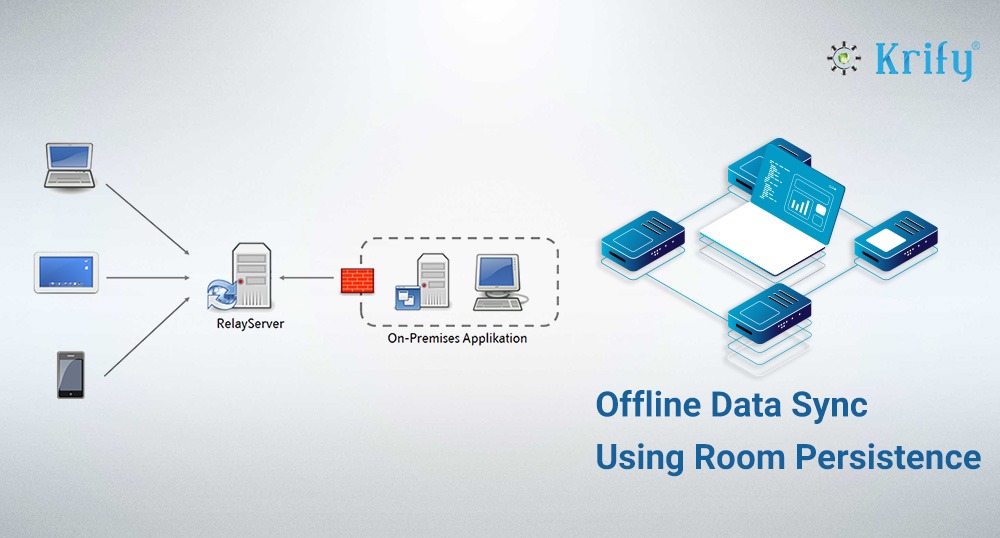
Jobber documents offline saving of some notes, attachments, forms and time-tracking operations, which synchronize once connectivity returns. The scope differs by operation, and location-based timer functions have additional connectivity requirements.
Unsynced data can also be lost. Jobber’s notes and attachments documentation warns that pending edits can disappear if the user logs out, deletes, force-closes or updates the app before synchronization finishes.
Run an airplane-mode test on the same phone, account role and edition your technicians will use:
- Before disconnecting: Load an assigned job and confirm its details are there.
- While disconnected: Open the job and try notes, forms, photographs, timers and payments one by one.
- During the outage: Have the office make a new assignment or change and see when it appears.
- After reconnecting: Let pending changes synchronize and compare the technician’s record with the office record before closing or updating the app.
Use the same PASS, FAIL or NOT TESTED labels as in the trial. Results change with the app, device, user permissions and operation.
Check the accounting handoff, especially deposits and credits
A field service app can create a valid invoice while its accounting connection handles only certain record types or only one direction. Your bookkeeper needs to know which records reach the ledger and what happens to payment status.
Jobber’s documentation for its newer QuickBooks Online integration, updated October 29, 2026, describes a rollout to selected eligible accounts. It separates an initial import from ongoing synchronization.
On first connection, existing QuickBooks Online clients and products or services can be imported into Jobber. After that, synchronization sends specified records from Jobber to QuickBooks Online, including clients, items, invoices and payments, with configurable triggers.
Paid invoice status doesn’t synchronize back from QuickBooks Online into Jobber through the newer integration, and the integration offers no direct QuickBooks Desktop synchronization. Older setups work differently.
The Jobber QuickBooks Online synchronization guide explains the record directions and settings.
Take a contractor who receives a deposit before installation starts. The final invoice may come later, after extra work or approved changes.
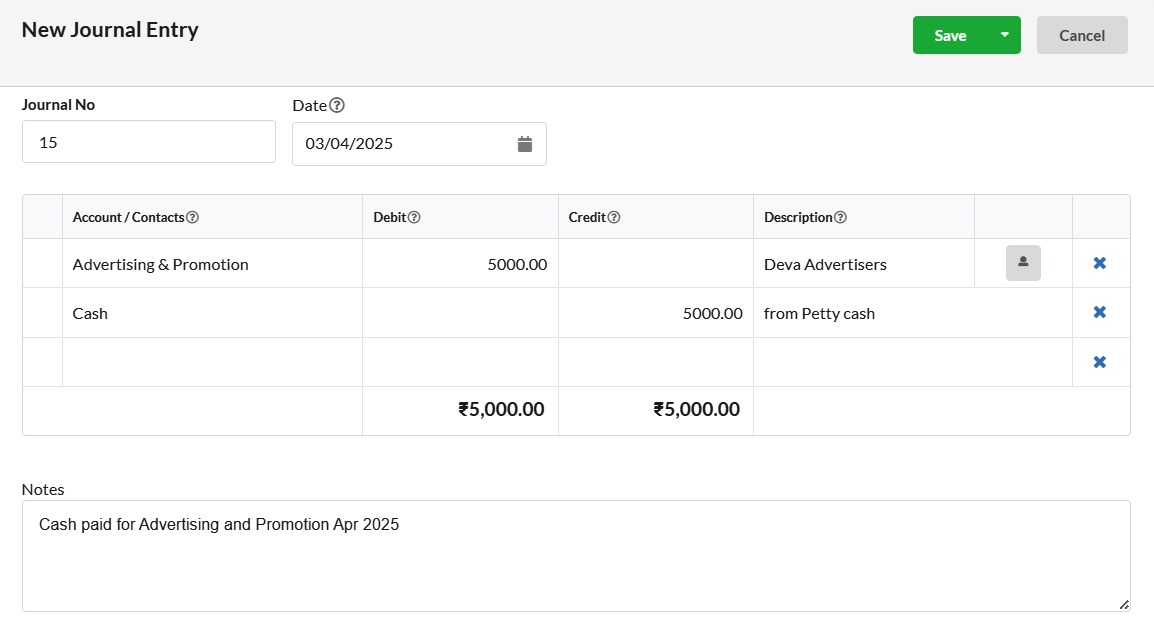
In a test environment, enter a deposit, a paid invoice and, where supported, a partial payment or credit. Then reconcile the job record with the accounting record: customer identity, invoice number, amount, payment application, credit or refund treatment, and the balance your bookkeeper expects.
Note which transactions synchronize, which need a manual step and which can’t be completed in the edition you’re buying.
Choose a tool you can grow with and leave if you need to
A service business piles up information that gets harder to replace with every job: addresses, notes, appointment history, approvals, photos and invoices.
Two questions matter as you grow. Can new employees work under an affordable permission model? And can you get usable records out if you switch platforms later? Crew-size pricing and role-based billing give you different paths as you add staff. Portability is a separate test.
Housecall Pro documents an administrator-controlled process for exporting customer and job records as CSV, and its help materials describe importing supported customer and job files.
The export gets your records out, but check what’s in the file: attachments, approvals, invoice relationships and detailed history.
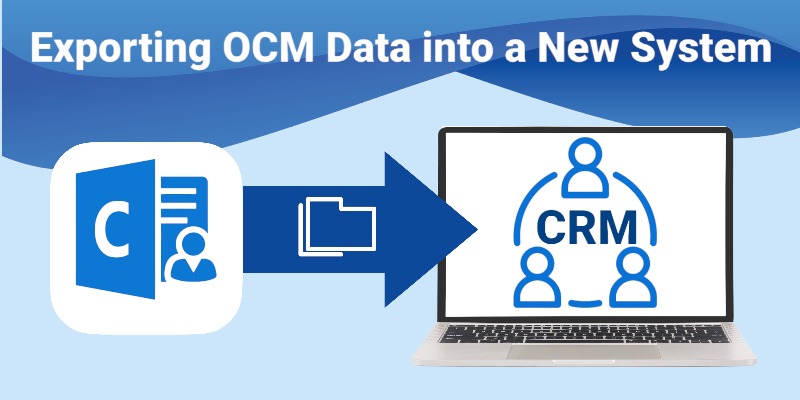
Before moving an established customer database, export a small sample that includes a customer with multiple jobs, a note and an invoice reference. Open it in a separate spreadsheet or test destination and note which values are present, which need manual rebuilding and who has permission to start the export.
When a calendar and invoicing app are enough
Some one-person businesses already run well on a calendar, estimate templates and an invoicing app. Appointments are visible, invoices go out promptly and customer records are easy to find. For that owner, a full field service suite adds a subscription and another workflow to maintain.
A limited-volume product is one alternative. ServiceM8’s published Free tier, for example, lists one user and a 30-job monthly allowance. Check whether that covers your required work on your device and feature set.
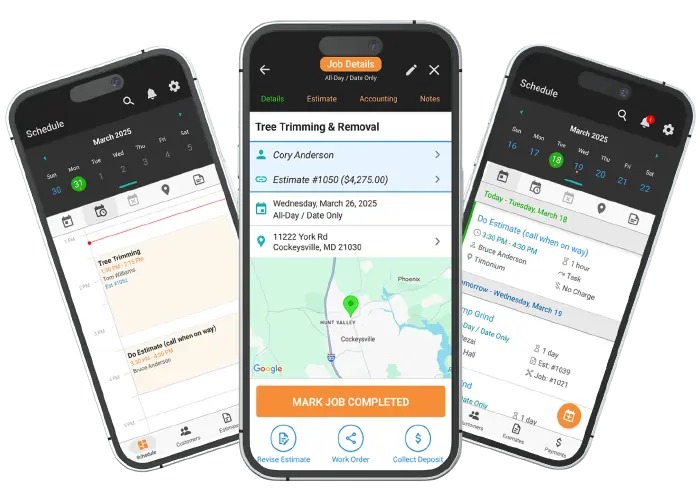
A shared system becomes easier to justify when appointments change often, several technicians depend on a dispatcher, or recurring jobs need a connected history.
Keep a one-week record of missed follow-ups, repeated entries, assignment confusion, delayed invoices and lost job details. For each problem, name the capability that would fix it. If nothing goes wrong that week, keep what you have.
Don’t let star ratings or a sales demo decide for you
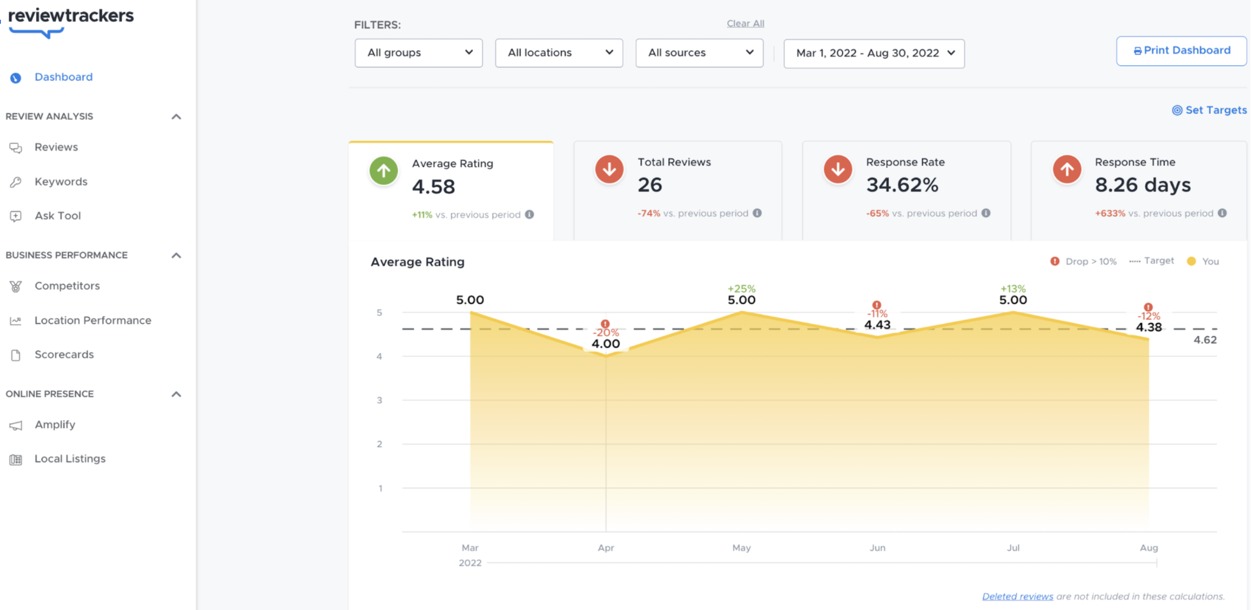
A review score reflects the experiences behind it. It can point you to software worth investigating, but what decides it for you is whether your critical operations work in your chosen edition.
Capterra’s August 26, 2026 small-business field-service guide describes a seven-product selection informed by 1,755 reviews. Software Advice offers product comparisons, pricing information and buyer guidance, and G2 has a small-business field-service category with ratings and reviewer feedback. None of these replaces a test of the work your own team does.

For each shortlisted product, sort claims into four groups:
- Vendor documented: a capability, rule or limit stated in product documentation.
- User reported: one person’s experience or opinion, with their usage conditions.
- Tested by your team: an operation completed with your planned edition, device and staff permissions.
- Unverified: a required claim with no documentation and no completed test.
A demo built around the vendor’s preferred workflow can look persuasive. What counts is your list of essential tasks you’ve verified, plus the requirements still open.
Affiliate relationships that could influence an endorsement should be disclosed clearly near that endorsement, consistent with FTC guidance on material connections.
When to sign, defer, or keep your current tools
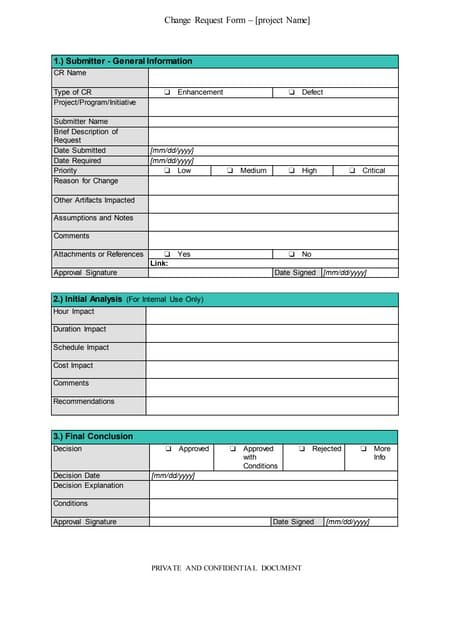
Keep the job-cycle results with the quoted plan and operating cost. A failed essential step matters more than the number of optional features included.
Speak Your Mind