A service company’s records do not end at the customer name: properties, visits, work orders, invoices and payments must remain connected after a migration. Reconcile the financial totals and let staff finish a normal workday in the replacement system. An unresolved critical mismatch delays cutover and retirement of the old tool.
What can break even when customer records transfer?
An intact customer list does not guarantee an intact service history. A service address may be wrong, photographs missing, or a maintenance visit detached from the agreement that generated it. Each is a different migration failure that ordinary staff can recognize.
Test the records the way a service company uses them:
Customer → service property → job → scheduled visit → invoice → accounting ledger.
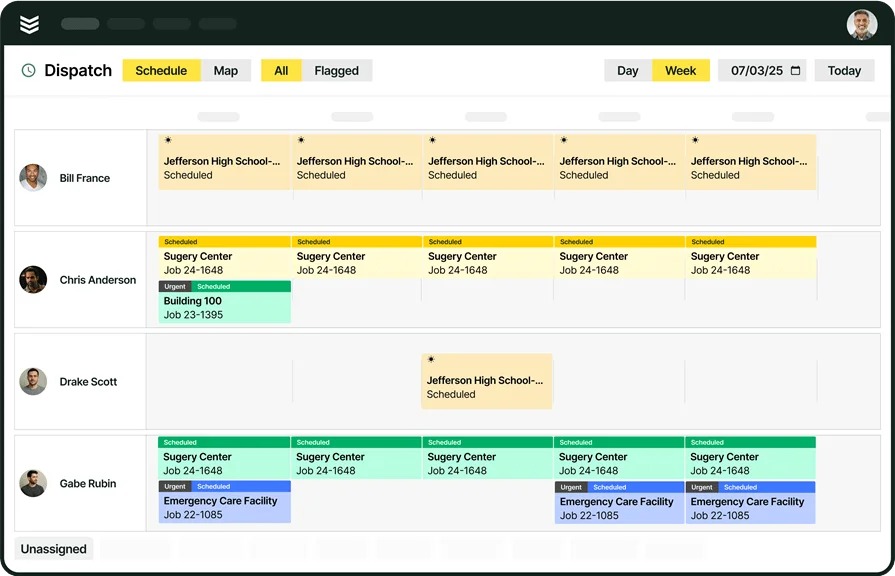
Dispatch needs the right location. The technician needs the service history for that location. The office needs the right invoice, and accounting needs the matching ledger entry.
A post in r/smallbusiness described the strain of running an electrical business after switching to ServiceTitan while keeping QuickBooks Desktop.
Small electrical business that just made the switch to Service Titan and I feel like we are running into nothing but problems. We still use QuickBooks Desktop for our accounting software and trying to continue business has been a struggle (entering payables, employee time keeping/payroll, entering payables, return trips for service calls, etc..) .
The problems in that post are everyday tasks: returning to an existing job, keeping time, and handling financial records across systems.
Pick one active service call as your master test case. Record its original customer, property, job, appointment, and invoice identifiers. Check the rest of the migration against those linked records, and test other record types that need special handling separately.
Inventory every system and choose a source of truth
Before anyone exports a file, decide where the business keeps each kind of information and who can change it. Your inventory covers the old field-service system, accounting ledger, scheduling tools, payment services, pricebook, and any separate payroll, booking, or communications products.
Give each data category one authoritative source. Housecall Pro’s data-import preparation guidance warns about overlapping imports from QuickBooks and a previous field-service system, including the risk of duplicate records.
| Record category | Example source | Migration treatment | Responsible role |
|---|---|---|---|
| Customers and service addresses | Old system | Migrate | Office coordinator |
| Active jobs and appointments | Old system | Migrate and validate | Dispatcher |
| Recurring service agreements | Old system | Migrate or rebuild | Operations manager |
| Invoices and payments | Field-service billing or accounting ledger, depending on integration direction | Assign transaction edit ownership; reconcile ledger totals | Bookkeeper |
| Historical photos and work notes | Old system or file storage | Migrate or archive | Service manager |
| Payroll and customer booking | Connected services | Retain, reconnect, or replace | Integration owner |
Each row forces a decision. Records the new system needs get migrated, unsupported processes may need rebuilding, and older files may belong in an accessible archive. The owner stays accountable for the data even when a contractor does the import.
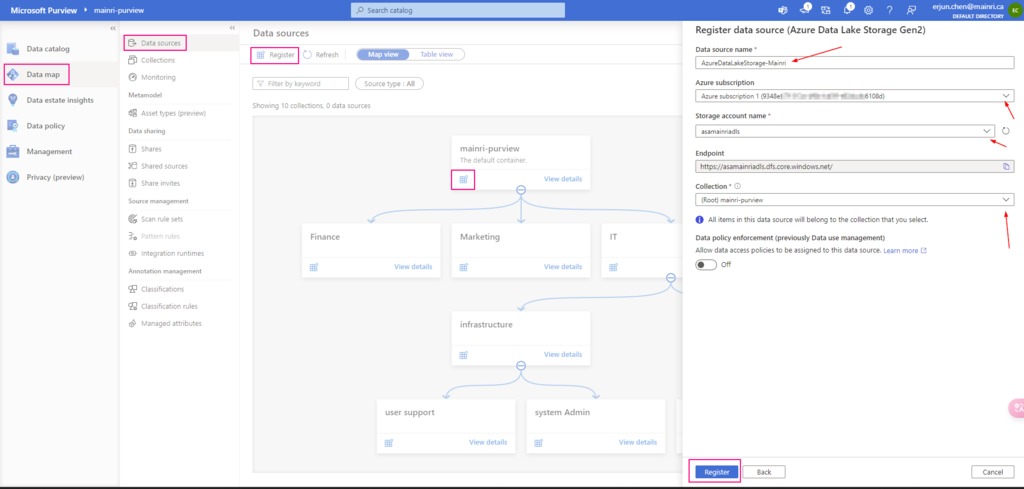
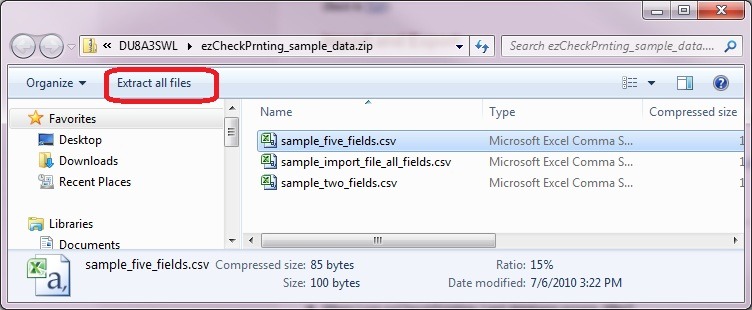
For every export, record the source system, file format, snapshot time, record count, required permissions, export owner, and any missing batches. Keep the original exports untouched and edit copies for import.
Jobber documents client exports as CSV or vCard files, subject to account and permission restrictions. Its export instructions also describe splitting large client lists into emailed CSV attachments of up to 1,500 rows each, so account for every attachment before you call the export complete.
Check pricebook fields separately. Housecall Pro documents a $0 default for omitted service prices and a false taxable default for imported services and materials. The materials price field is optional. Before importing the full catalog by this route, compare one active item’s identifier, expected price, and taxable setting against the destination.
Set a change-freeze point and name one person to log any customer calls, schedule changes, or payments made after the export. Those changes need an approved way into the new system that doesn’t repeat the whole import.
Map customers, properties, and identity keys

A billing account and a service property can be different records. A commercial customer may have several buildings, each with its own equipment, past work, and scheduled visits. Keep that relationship intact after migration.
Build a crosswalk with the original customer ID, destination customer ID, source and destination property IDs, linked job IDs, and any unresolved matching conflict. Watch address spelling and formatting: the same place often appears in several forms.
Example (fictional data):
| Source customer / property | Destination customer / property | Source job | Expected association |
|---|---|---|---|
| C12 / P01 | C90 / L11 | J22 | Job belongs to L11 |
| C12 / P02 | C90 / L12 | J24 | Same customer, separate property |
| C13 / P03 | C91 / L13 | J28 | Separate customer and history |
If both properties under C12 get merged into L11, the customer count still looks right while the technician sees the wrong work history.
Housecall Pro’s customer importer supports one customer level. For parent-child accounts, its guidance says to import parent accounts without their children or prepare child accounts as separate rows, then set up the sub-customer relationships in Housecall Pro. Check that billing hierarchy separately from the service-property links in your crosswalk.
Run a sample import before the bulk transfer. Include a multi-property customer, a job with known supporting records, a recurring service example, and an active price-book item. Test an open invoice separately through the financial integration. Use a test environment if the vendor offers one. Otherwise, use a small sample with a recovery procedure in the real account.
- Before import: Record the source identifiers, expected relationships, values, and record counts for the sample.
- After import: Record destination identifiers and compare the customer, property, and job links against the crosswalk.
- Exceptions: Log missing rows, duplicate customers, incorrect addresses, and lost field values, each with an owner and a fix.
- Bulk-import decision: Approve the mapping only when representative records pass, or when an accepted exception has a safe workaround.
Jobber’s import matching rules make names and property addresses matter. A record that fails to match can create a new customer or property. The sample shows you that failure before it spreads through a large dataset.
Verify job history, photos, and attachments
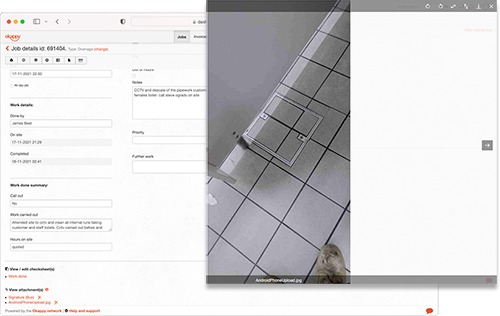
The technician on the next call needs to understand past work. A migrated job header may show a date and status while the diagnostic notes, equipment information, or photographs needed for a callback stay behind.
Pick a completed call with a known return visit or heavy documentation, then check:
- Job identity: Original work order ID, date, customer, service property, work type, and completion status.
- Service notes: Diagnosis, work performed, recommendations, and return-trip instructions.
- Supporting files: Photos, estimates, forms, and other attachments staff may need to pull up.
- Equipment history: Asset references or serial details, where the business recorded them.
Open the migrated work record in the interface the technician uses. Confirm the files open and each note or image sits on the right property and job. A reference to a file nobody can open counts as a failure.
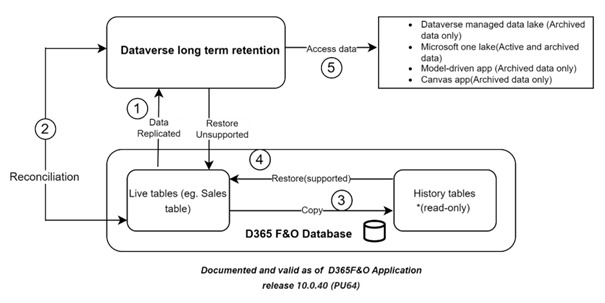
Housecall Pro and ServiceTitan document customer and job export fields. Compare the destination job’s notes, files, equipment fields, and custom relationships with the original, including details outside the exported fields.
If an attachment type can’t transfer faithfully, store it in an archive with a reference that identifies the original job. The archive owner handles retention and access. Related: how to verify what the new software can preserve.
Rebuild recurring jobs, memberships, and visits
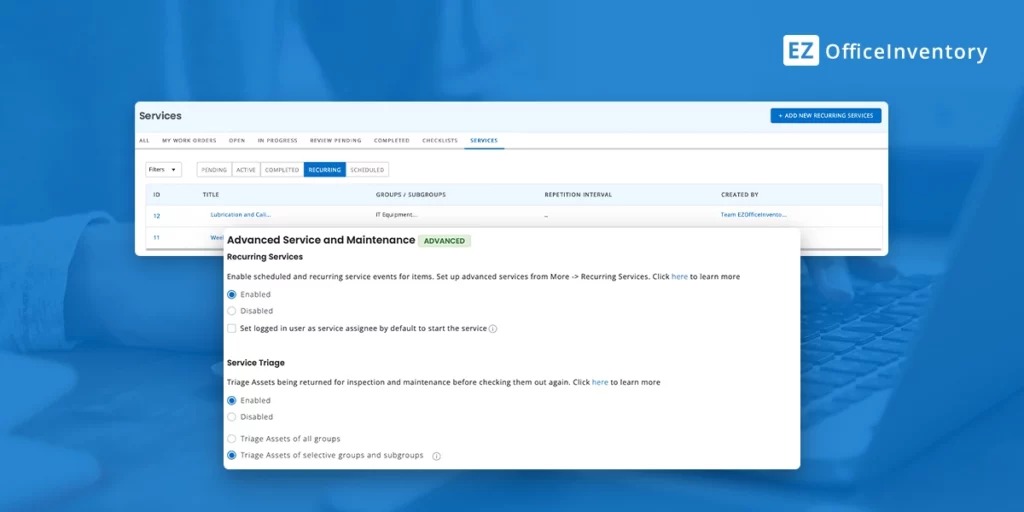
A recurring service has several moving parts: an agreement or job, a recurrence rule, future visit dates, worker assignments, and a billing arrangement. They can drift apart when one system exports a record and the next interprets it differently.
Jobber’s Import Jobs documentation, updated September 10, 2026, described a beta CSV importer for one-off and recurring jobs, with a limit of 1,000 jobs per batch.
In that beta importer, jobs with past start dates are marked complete and archived, and each start date must fall within ten years of import. Related: how to start with a paid repair.
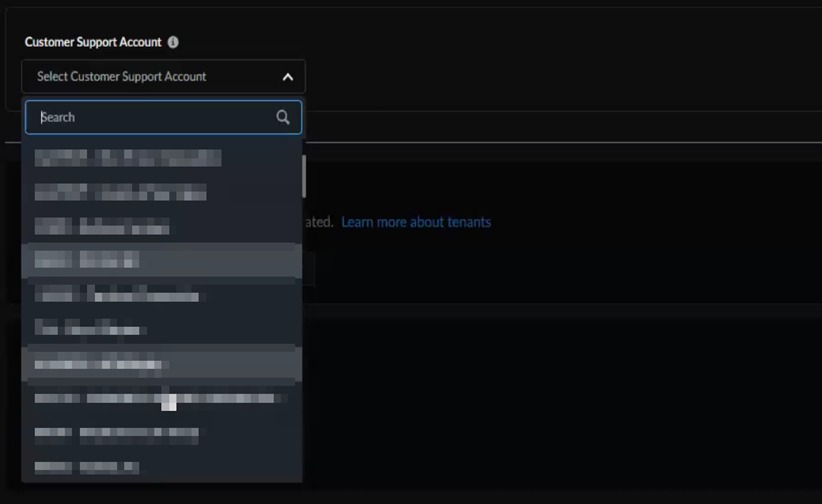
For a maintenance agreement, compare the next two expected visits in the source and destination: customer, service property, date, scheduled worker, service description, and invoicing event. The schedule and billing arrangement must be usable for the upcoming work. Related: handling irregular recurring field-service jobs.
Jobber’s Visits Report provides scheduling information, including details on recurring service, and its exported rows represent visits. Verify the recurring rules, future assignments, and membership billing in the destination workflow.
When an agreement needs manual rebuilding, assign one owner to enter its recurrence and billing settings and record the resulting future appointments. Send customer reminders only from the confirmed destination schedule.
Reconcile invoices, taxes, and payments before go-live
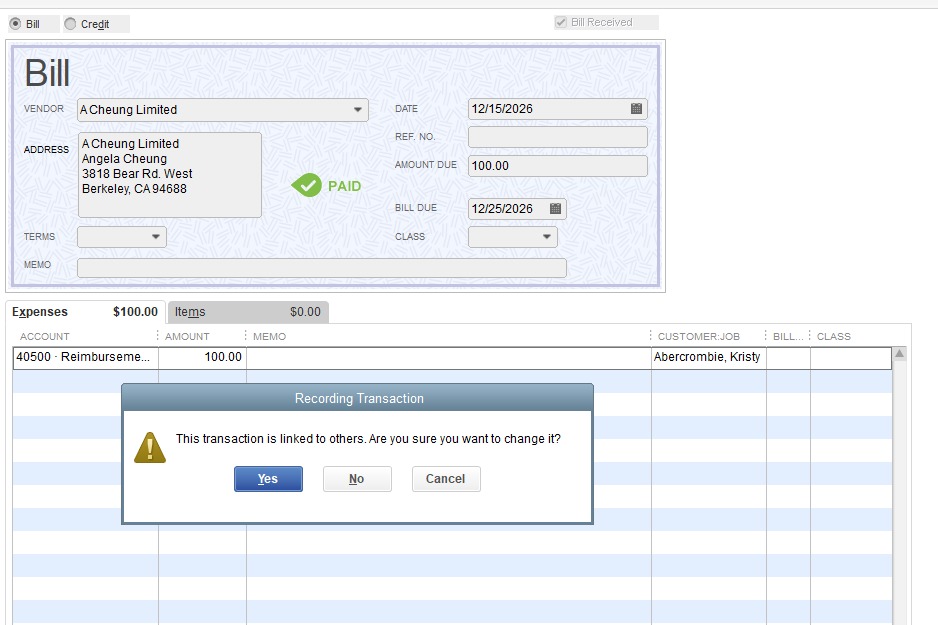
Match every field-service transaction to its accounting record. An invoice, payment, refund, and payout can have different identifiers and sync differently, so reconcile each one separately.
Identify your accounting product and integration generation before configuring transfers. QuickBooks Online (QBO) and QuickBooks Desktop (QBD) have distinct onboarding paths. Jobber also documents different behavior for its new QBO integration and the older, manually initiated one.
In the selected-account rollout of Jobber’s new QuickBooks Online integration, supported records sync one way, from Jobber to QBO, on an ongoing basis. Some historical transfers and payment-related categories depend on configuration.
When an invoice is marked paid in QBO, the new integration does not sync that paid status back to Jobber.
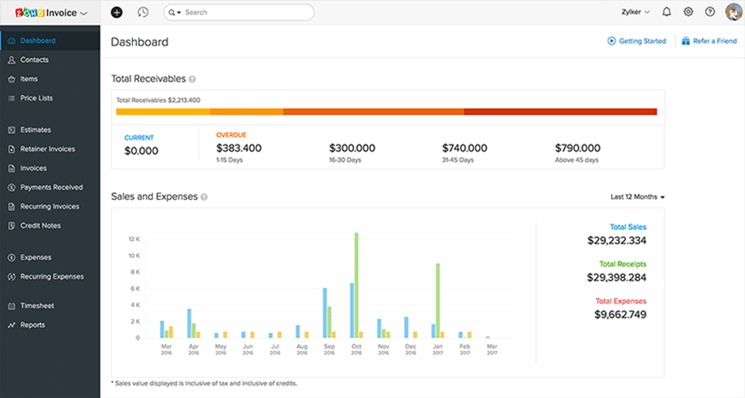
Your reconciliation worksheet should show the expected result next to what the destination recorded. Use real transaction identifiers and amounts from your sample.
| Test transaction | Records and values to compare | Expected result | Observed result / evidence |
|---|---|---|---|
| Open invoice | Customer, invoice ID, subtotal, tax, open balance | Correct receivable in the right account | Enter source and destination IDs, balances, and discrepancy reference |
| Paid invoice | Invoice ID, payment ID, payment amount, paid status | One correctly applied payment; expected status in each system | Record the ledger entry and each system’s actual status |
| Refund or adjustment | Original transaction, refund reference, tax and resulting balance | Correct financial relationship and updated balance | Record resulting values and any review exception |
A sync can fail outright or finish with a warning. Jobber’s new-integration troubleshooting guidance separates errors that block sync from warnings where data transferred with changes. Its warning examples include tax-rate substitutions and invoice rounding differences.
Review both. When an imported invoice carries a warning, compare its tax and amount with the accounting record, even if the integration reports the item as synced.
That guidance covers client and item errors before downstream invoice, payment, and payout problems. The order helps when a financial exception traces back to a mismatched customer or service item.
The bookkeeper or an accounting-qualified reviewer must resolve material invoice, tax, payment-application, or balance discrepancies before authorizing the affected financial workflow.
Train the dispatchers, technicians, and office staff
The system is ready when the people who answer calls, dispatch crews, and close jobs can do it without the migration coordinator stepping in.
An HVAC participant described moving to ServiceTitan, preferring the new system to the old one, and still struggling to train new employees:
For those that help manage their CRM, what are your biggest problems with it? We migrated to Service Titan a few years ago and its much better then our old system but I feel like it takes forever to train up any of my new employees and even then they just scratch the surface of what seems to be out there.
Run one connected service-day rehearsal with the staff and devices used in the real workflow:
- Office coordinator: Open the correct customer and property, then enter a typical incoming request.
- Dispatcher: Assign the visit and handle a change of scheduled worker.
- Field technician: Open the assigned work on the device they’ll use, pull up the history, record the work, add notes or photos, and close the job.
- Billing staff: Generate the invoice from the completed work.

For each role, note the expected action, the result, completion status, a screenshot or record, and who owns any failed step. Repeat the affected part after fixes.
Include details that change how a call ends: new arrival forms, required job fields, missing shortcuts, and the field connection the technician depends on.
Validate access, add-ons, and staff permissions
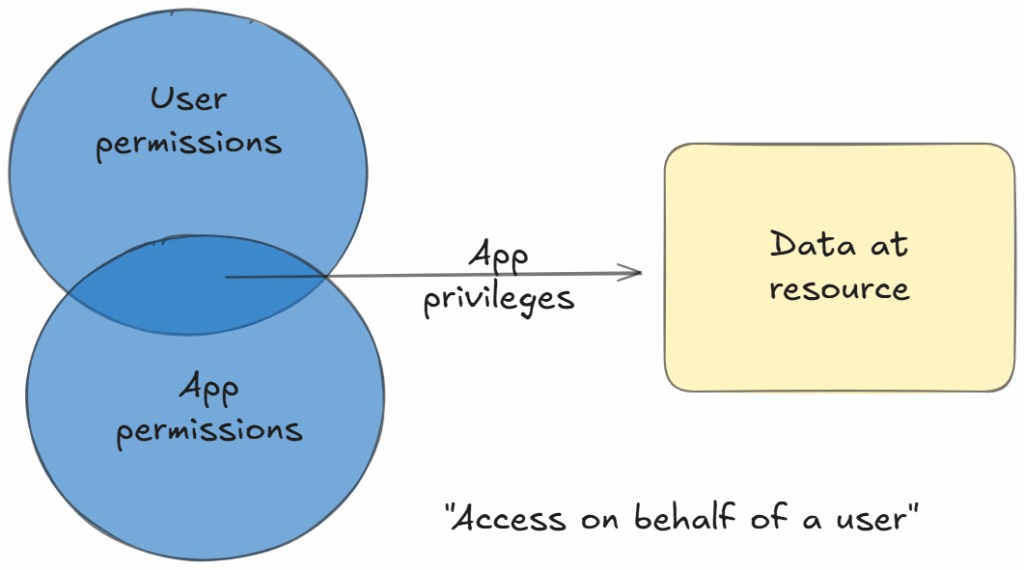
Each staff role needs the permissions and paid features its work requires, so compare the account’s actual role entitlements with your planned roles. Check restricted exports, technician seats, mobile functions, additional services, and subscription limits against your vendor plan and agreement. Budget migration assistance charges and the cost of running both systems during the transition as separate line items.
Decide what must be rebuilt outside the new platform

Field-service software rarely works alone. Replacing the central job-management platform can mean changing the services around it that handle employee pay, online booking, customer messages, and money movement.
Give every connection a decision and an owner:
- Payroll and timekeeping: Keep the current arrangement if its data flow still works. Otherwise, set up and test a replacement.
- Website bookings: Reconnect forms and booking links so requests reach the right schedule and office queue.
- Customer communications: Rebuild appointment reminders, templates, and contact-preference handling if the old platform supplied them.
- Payment services: Identify processor accounts, customer payment links, and settlement arrangements tied to the old system.
- Calendar and reporting: Restore the feeds and reports dispatch or management relies on.
Payroll can become a separate migration even after customer and job records transfer cleanly.
For each critical connection, note the last successful old-system operation, the replacement, the owner, and a concrete test result. List any dependencies that stay live in the old environment during the transition.
Test cutover, rollback, and success criteria
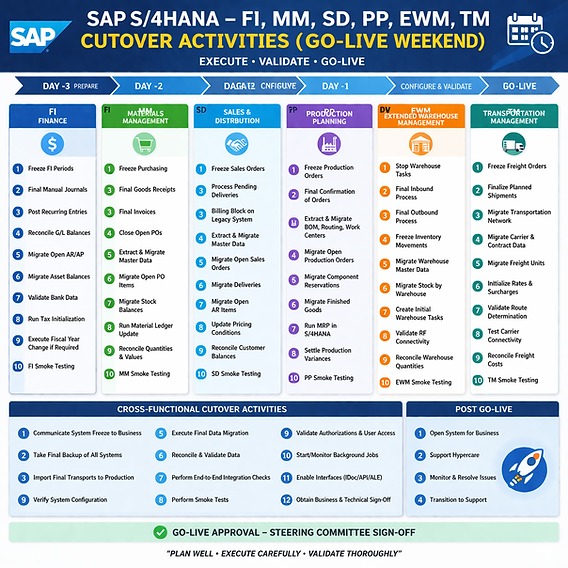
Name an approver for the go-live decision and keep a current record of critical test results. The approval states which system controls new work, which exceptions remain open, and what happens if a required service or financial operation fails during the transition.
Agree on the final source-system write point, the export snapshot, and how to handle approved changes made afterward. If both systems stay accessible, assign write ownership explicitly so no customer change, appointment, or invoice gets entered twice.
After the full import, reconcile source and destination counts for customers, service locations, active jobs, planned visits, and other critical record groups. Record the reason for each difference, including intentional exclusions, merged records, and changes made after the export. Attach the totals and open exceptions to the approval record before cutover.
Use this acceptance register as your stopping rule:
| Critical test | Failure condition | Owner | Evidence to record | Decision |
|---|---|---|---|---|
| Active dispatch | Assigned service call cannot be opened or handled | Operations manager | Job and visit IDs; task result | Hold |
| Customer and property | Job linked to incorrect service location | Migration coordinator | Crosswalk IDs; observed mismatch | Hold |
| Required job history | Necessary notes or attachments cannot be retrieved | Service manager | Original job ID; retrieval result | Hold pending usable access |
| Financial reconciliation | Material invoice, tax, payment, or balance discrepancy | Bookkeeper | Source and destination values; exception ID | Hold |
| Staff workflow | Assigned employee cannot complete required task | System administrator | Role and task result; correction record | Hold |
The threshold is zero unresolved critical exceptions. A noncritical item can stay open only if the approver documents its impact, safe workaround, owner, and who resolves it.
Three outcomes are possible:
- Go: Critical tests pass, accepted exceptions are documented, and the team knows which system now controls incoming work.
- Delay: A critical failure remains unresolved. Keep the old operating route while the named owner corrects and retests it.
- Controlled hold or rollback: The switch has started and a new critical problem calls for the approved recovery procedure.
Recovery depends on which records have already changed. The plan should say who can stop new entries, where incoming work gets handled, and how records written since the switch will be preserved and reconciled.
Once the new system takes live work, review the first completed service call and its financial handoff against the same evidence. Keep watching through the next recurring or billing event if that event is critical to the business.
The approver signs the decision record along with the test evidence, any accepted exception, and the name of the person who can activate the recovery procedure.
Archive versus migrate: decide what must remain accessible
Old service records can matter without belonging in the live scheduling database. The new platform needs what current work requires. Older invoices, job photographs, notes, and correspondence can sit in a separate searchable archive when that keeps their relationships better intact.
Document the archive’s location, file formats, access permissions, original job references, and who maintains retrieval. If the old software stays available for reference, record its subscription cost and who may use it.
The IRS guidance on business record retention explains that different records and circumstances can require different retention periods. Apply the rules that fit your records before you set a disposal date.
FTC business guidance also covers limiting access to personal information and disposing of it properly once you no longer need it. Give archive access to authorized staff and review it when business or legal requirements change.
Before ending the old subscription, have the archive owner retrieve a historical invoice, its linked service record, and the attachments. Record the lookup and where the files sit, so future staff can find them without an inactive user account or an undocumented export.
The archive is ready only when a future employee can locate the historical invoice, its service record and attachments without relying on an inactive account.
Speak Your Mind